

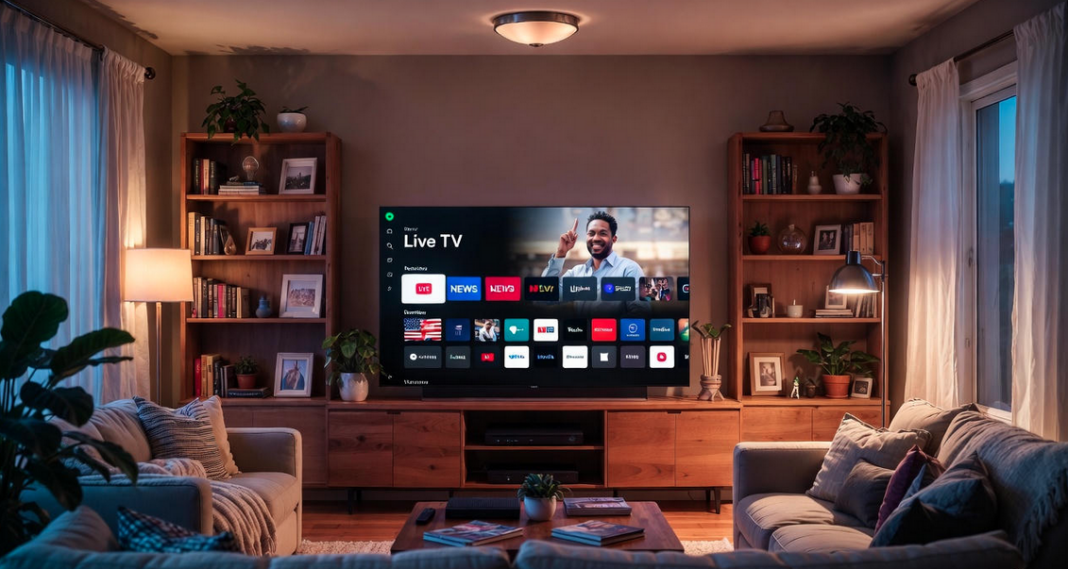

Hulu + Live TV provides an excellent option for streaming live channels, such as news, sports, and entertainment programming, straight through the internet. It serves as a strong competitor to conventional cable or satellite TV, offering greater convenience, cost savings, and the ability to watch on various devices. No matter if you’re passionate about live sports, staying updated with current events, or catching shows as they air, this service adapts to different entertainment needs.
Starting out is simple and user-friendly. You’ll need a supported device, like a smart TV, streaming stick (such as Roku, Amazon Fire TV, or Apple TV), gaming system, or laptop/desktop. A dependable high-speed internet connection—at least 8 Mbps—is crucial to avoid buffering during streams. With your setup ready, head to the Hulu site or download the app, then register for a Hulu + Live TV package. This includes setting up an account, picking a subscription tier, and adding billing information. New users frequently get a free trial period to try it out risk-free.
Once subscribed, personalize your setup by adding extra channels, expanding cloud DVR storage, or creating separate profiles for household members. The platform’s design is easy to navigate, helping you locate and view content without effort. It works smoothly across devices, so you can seamlessly move from your living room TV to a phone or tablet. Be aware that certain channels might vary by region due to location-based availability.
In essence, Hulu + Live TV merges the excitement of real-time broadcasts with the flexibility of on-demand viewing, positioning it as an attractive solution for those ditching traditional TV in favor of a unified streaming service. Getting familiar with the initial setup means you’ll be set for hassle-free live viewing with plenty of options.
Requirements for Using Hulu + Live TV to Stream TV and Movies Live and Online
To enjoy a trouble-free experience with Hulu + Live TV, make sure you have everything needed beforehand. Key requirements include:
- Valid Hulu Subscription with Live TV Add-On
You must have the Hulu + Live TV tier active, which bundles live broadcasts with Hulu’s vast on-demand catalog. - Supported Device
The service works on a range of gadgets, from phones and tablets to smart TVs, media players (Roku, Fire TV, Apple TV), consoles, and PCs. Double-check compatibility via Hulu’s site. - Reliable Broadband Internet
A consistent connection is vital. Hulu suggests at least 8 Mbps for high-definition streams and 16 Mbps or more for 4K where available. - Updated Browser and OS (for Web Access)
Stick to recent versions of browsers like Chrome, Safari, Firefox, or Edge, and keep your device’s operating system current to avoid glitches. - Login Details
Keep your email and password handy for quick sign-ins across apps or the website. - Extras Like Profiles or Multiple Devices
Think about adding user profiles for shared accounts or ensuring apps are updated on all devices.
Meeting these basics will make launching Hulu + Live TV quick and prevent common technical hiccups.
Setting Up a Hulu Account to Stream Live Sports, News, TV Shows, and Movies
The foundation for Hulu + Live TV is a Hulu account, which you can create quickly. Here’s how:
- Visit the Hulu Website: Open your browser and go to hulu.com.
- Click on Sign Up: Find and click the “Sign Up” option, usually in the upper-right area.
- Choose Your Plan: Pick a plan—choose Hulu + Live TV for access to live channels.
- Enter Your Details: Input your email, create a secure password, and add details like name and date of birth.
- Provide Payment Information: Add a payment method (cards or supported alternatives); billing recurs monthly.
- Review and Confirm: Review everything and submit—opt for a free trial if offered.
You’ll then receive confirmation (possibly via email verification), and your account will be ready for live streaming on any compatible device.
Selecting a Hulu + Live TV Plan
Picking the best plan is key to getting the most value. Hulu has options suited to different needs and budgets.
The core Hulu + Live TV package is widely chosen, delivering more than 75 live channels covering sports, news, and more, plus full access to Hulu’s on-demand titles. It supports two simultaneous streams and offline downloads.
For bigger families or heavier users, upgrades like Unlimited Screens let you watch on unlimited home devices and up to five on the go.
Costs depend on the base plan and any extras. The standard option is priced competitively each month. Add-ons for things like extra DVR hours or premium networks (e.g., HBO, Showtime) raise the fee.
Evaluate your priorities—channel needs, household size, and extras—before signing up. Take advantage of trial periods to test channel availability and performance.
Ultimately, align your plan with how you and your family watch to maximize enjoyment.
Watching Hulu + Live TV on Different Devices
One major perk is device versatility. Here’s how to tune in on common platforms.
Mobile Devices (Phones/Tablets)
- Download the Hulu App: Get the Hulu app from App Store or Play Store.
- Sign In: Open it, log in, and head to the Live TV area.
- Start Streaming: locate the Live TV section to access live channels.
Smart TVs and Media Players
- Compatible Devices: Works on Roku, Fire TV, Apple TV, Chromecast, and many smart TV brands.
- Install the App: Search for and install Hulu from the device’s store.
- Activate and Sign In: Sign in (or activate if needed) and start browsing live options.
Computers via Web Browser
- Supported Browsers: Use an updated Chrome, Firefox, Safari, or Edge.
- Visit the Website: Visit hulu.com, log in, and select Live TV.
- Log In and Stream: Type in your details, navigate to Live TV, and start viewing.
Helpful Notes and Tips
- Internet Connection: Maintain good internet speeds.
- Account Details: Always have credentials ready for easy switches.
- Device Compatibility: Refer to Hulu’s support page for the latest device list.
Using the Hulu App on Smart TVs or Streaming Devices
Get live channels on your big screen easily with these steps.
1. Confirm Support
Check if your device (e.g., Samsung/LG/Vizio TVs, Fire TV, Roku, Apple TV, Chromecast) runs Hulu. Update firmware for best results.
2. Install the App
- Go to the app store/channel hub.
- Search “Hulu,” download, and launch.
3. Log In or Sign Up
- Existing users: Enter email/password.
- New users: Choose a plan and complete payment on-screen.
4. Tune Into Live TV
Browse the guide, select channels, or set recordings from the home screen.
5. Additional Tips
- Strong Wi-Fi prevents lags.
- Keep the app updated.
- Tweak settings for personalized use.
Streaming Hulu + Live TV on a Computer Browser
For desktop viewing, use these steps:
- Browser Check
Update to the newest Chrome, Firefox, Safari, or Edge to sidestep issues. - Go to Site
Head to https://www.hulu.com and click “Log In” (top right). - Enter Credentials
Sign in or create an account with Live TV included. - Find Live Section
Click “Live TV” in the menu to see channels and guide. - Watch
Select a channel; use the guide for schedules or DVR if available.
Extras
- Clear cache periodically.
- Turn off conflicting extensions.
- Prefer wired connections for stability.
Downloading Hulu: Stream TV shows & movies – Apps on Google Play
The Hulu app allows you to stream movies, TV shows, originals, and live TV (with a Hulu + Live TV subscription) on your Android device. It’s free to download, but accessing content requires a paid Hulu subscription. As of 2026, the app typically requires Android 5.0 or higher (some sources mention Android 7.1+ for the latest features). This is the Step-by-Step Guide to Downloading the Hulu App from the Google Play Store.
Important Note: Hulu is a U.S.-only streaming service due to licensing restrictions. The app may not appear in the Google Play Store if your Google account is registered in a country outside the United States (e.g., Nigeria or other non-U.S. regions). Even if downloaded, streaming content will be blocked outside the U.S. without additional tools like a VPN connected to a U.S. server.
Requirements
- An Android smartphone or tablet running Android 5.0 or later.
- A stable internet connection (Wi-Fi recommended for faster download).
- A Google account logged into the Play Store.
- If outside the U.S.: You may need to create a new Google account set to the U.S. region or use a VPN to make the app visible (advanced step—see troubleshooting below).
Steps to Download the Hulu App
Open the Google Play Store
Locate the Play Store app on your device’s home screen or app drawer (it has a white shopping bag icon with a colorful triangle). Tap to open it.
Search for the Hulu App
- Tap the search bar at the top of the screen.
- Type “Hulu” or “Hulu: Stream TV shows & movies”.
- Look for the official app by Hulu (it has a green logo with white “hulu” text). The full title is usually “Hulu: Stream TV shows & movies”.
Select and Install the App
- Tap on the official Hulu app from the search results.
- On the app page, tap the green Install button.
- If prompted, review the permissions (e.g., storage for downloads, network access) and accept.
- The app will download and install automatically. This usually takes a few minutes, depending on your internet speed (the app size is around 10-20 MB).
Open the App
- Once installed, tap Open from the Play Store page, or find the new Hulu icon on your home screen/app drawer.
- Sign in with your Hulu account credentials (or create a new account/subscription if you don’t have one).
- If you’re in the U.S., you can start streaming immediately.
Troubleshooting Common Issues when downloading the app
App Not Found in Search?
This is common outside the U.S. due to regional restrictions. Options:
- Create a new Google account and set the country to United States during setup (you may need a U.S. payment method for verification).
- Use a reliable VPN app connected to a U.S. server before searching (this can make U.S. apps visible).
- As a last resort, sideload the Hulu APK from a trusted source like APKMirror or Uptodown (search for the latest version, e.g., 6.x+ in 2026), but enable “Install unknown apps” in settings and be cautious of security risks.
Download Errors (e.g., “Can’t download” or compatibility message)?
- Check your internet connection and storage space (free up at least 100 MB).
- Clear Play Store cache: Go to Settings > Apps > Google Play Store > Storage > Clear Cache.
- Update your device’s software and the Play Store app.
- Restart your device.
App Installed but Content Blocked (“Not available in your location”)?
- Hulu detects your location via IP address. Connect to a VPN with U.S. servers for streaming (note: Hulu actively blocks many VPNs, so choose one known to work reliably).
- Once downloaded, you can enjoy features like offline downloads (on select plans), personalized profiles, and live TV if subscribed. For the best experience, keep the app updated via the Play Store. If you run into persistent issues, check Hulu’s official help center at help.hulu.com.
- Enjoy your streaming! If you have a Hulu + Live TV plan, you’ll get access to over 95+ channels alongside on-demand content.
Step-by-Step Guide to Downloading the Hulu App from the Apple App Store (for iPhone and iPad)
The Hulu app lets you stream movies, TV shows, Hulu Originals, and live TV (with a Hulu + Live TV subscription) on your iPhone or iPad. It’s free to download, but you’ll need a paid Hulu subscription to access content. As of January 2026, the app requires iOS 16.4 or later for iPhone and iPadOS 16.4 or later for iPad. The same universal app works on both devices.
Important Note: Hulu is available only in the United States due to licensing restrictions. If you’re outside the U.S. (e.g., in Nigeria or other regions), the app may not appear in your App Store search results because of your Apple ID’s registered country. Streaming will also be blocked without a VPN connected to a U.S. server.
Prerequisites
- An iPhone running iOS 16.4 or later, or an iPad running iPadOS 16.4 or later.
- A stable internet connection (Wi-Fi recommended for faster download).
- An Apple ID logged into the App Store.
- If outside the U.S.: You may need to create a new Apple ID with the region set to United States (requires a U.S. payment method or gift card for verification) or use a VPN to access the U.S. App Store.
Steps to Download the Hulu App
- Open the App Store Tap the blue App Store icon on your home screen (it features a white “A” on a blue background).
- Search for the Hulu App
- Tap the Search tab at the bottom right of the screen.
- Type “Hulu” or “Hulu: Stream TV shows & movies” in the search bar.
- Look for the official app by Hulu, LLC (it has a green logo with white “hulu” text).
- Select and Download the App
- Tap the app from the search results to open its page.
- Tap the Get button (it may say “Download” if you’ve installed it before).
- If prompted, authenticate with Face ID, Touch ID, or your Apple ID password.
- The app will download and install automatically (size is around 200-250 MB, depending on updates).
- Open the App
- Once installed, tap Open from the App Store page, or find the Hulu icon on your home screen.
- Sign in with your Hulu account credentials (or create a new account/subscription inside the app).
- If you’re in the U.S., you can start streaming right away.
Troubleshooting Common Issues
- App Not Found in Search? This usually happens outside the U.S. due to regional restrictions. Solutions:
- Switch to a U.S.-based Apple ID (create one via appleid.apple.com, selecting United States as the region).
- Use a reliable VPN connected to a U.S. server before opening the App Store.
- Note: Sideloading is not straightforward on iOS/iPadOS without jailbreaking (not recommended).
- Compatibility Error (e.g., “Requires iOS/iPadOS 16.4 or later”)? Update your device: Go to Settings > General > Software Update. If your device can’t update beyond an older version, it may no longer support the current Hulu app.
- Download Errors?
- Ensure you have enough storage space (free up at least 500 MB).
- Restart your device or reset network settings (Settings > General > Transfer or Reset > Reset > Reset Network Settings).
- Check your internet connection.
- App Installed but Content Blocked (“Not available in your location”)? Connect to a VPN with U.S. servers (Hulu may block some VPNs, so choose one known to work).
Once downloaded, enjoy features like offline downloads (on select plans), multiple profiles, and live TV if subscribed. Keep the app updated via the App Store for the best performance. Visit help.hulu.com for more support.
Accessing Hulu on Mac (No Native App Available)
As of January 2026, Hulu does not offer a native app in the Mac App Store. There is no dedicated macOS version of the Hulu app (unlike on iPhone/iPad). A unified Disney+/Hulu app is planned for later in 2026, but it’s not available yet.
How to Access Hulu on Your Mac
The best and official way is through a web browser:
- Open your preferred browser (Safari, Chrome, Firefox, or Edge—Safari is recommended for best compatibility on Mac).
- Go to https://www.hulu.com.
- Click Log In (top right) and enter your Hulu account credentials.
- Browse and start streaming live TV, shows, or movies.
Tips for Better Experience on Mac:
- Use the latest version of macOS and your browser for smooth playback.
- Enable hardware acceleration in browser settings if needed.
- For a more “app-like” feel: In Safari (macOS Sonoma or later) or Chrome, you can add Hulu as a web app (via Share > Add to Dock).
- Offline downloads are not supported on Mac via browser.
If issues arise (e.g., playback errors), clear browser cache, disable extensions, or check Hulu’s help center at help.hulu.com.
Enjoy your streaming! If you have a Hulu + Live TV plan, you’ll have access to over 95+ channels plus on-demand content.
Fixing Common Problems of Hulu TV Streaming Service
If access issues arise, try these solutions.
- Subscription Check
Log in and confirm Live TV is active; upgrade if necessary. - Device/Software
Use approved hardware and update the app. - Internet
Run a speed test (aim for 8+ Mbps); reboot router. - Location Limits
Service is U.S.-only; note terms regarding VPNs. - Errors
Search Hulu help for codes or contact support. - Reset
Clear cache, reinstall app, or restart device. - Support
Reach out to Hulu for account-specific help.
Handling Your Subscription
Keep things running smoothly by managing your account.
- Account Page
Log in, click profile > Account. - Billing Updates
Edit payment methods to avoid lapses. - Plan Changes
Switch tiers or add bundles like Disney+/ESPN+. - Pause/Cancel
Temporarily halt or fully cancel via subscription settings. - Device Management
Remove unused devices to free up streams.
Regular checks keep service uninterrupted.
Enhancing Your Viewing Experience
Maximize features for better enjoyment.
- Recommendations
Rate content to improve suggestions; use “My Stuff” for favorites. - Profiles & Controls
Add family profiles; enable PINs and ratings limits for kids. - Offline Downloads
Save eligible titles for no-internet viewing. - Quality Tips
Use wired connections; adjust settings if buffering. - Multi-Device Use
Stream concurrently per plan limits; log out unused sessions. - Help Resources
Browse Hulu’s guides or chat support.
Conclusion
Getting into Hulu + Live TV is easy and unlocks a rich mix of live broadcasts and on-demand options. Pick a supported device, activate the right plan, install the app, and log in to dive into channels for sports, news, and shows—anytime, with internet.
Supported hardware spans smart TVs, streamers (Roku, Apple TV, Fire TV), consoles, mobiles, and more. Ensure solid speeds (8 Mbps minimum), keep software fresh, and maintain active billing.
For glitches, update apps, restart, or consult support. Features like DVR, profiles, and downloads add value.
Overall, the process—device selection, signup, app install, login—delivers versatile live streaming. Explore the lineup and enjoy modern TV flexibility wherever you go.


![TVseriya.NET - Watch Russian TV series online for Free [List of Best Russian TV series in HD quality]](https://hybridcloudtech.com/wp-content/uploads/2023/07/TVseriya.NET-Watch-Russian-TV-series-online-for-Free-List-of-Best-Russian-TV-series-in-HD-quality-100x70.png "TVseriya.NET – Watch Russian TV series online for Free [List of Best Russian TV series in HD quality]")