Getting to your iCloud account from a Windows PC is easy and very helpful. It lets you see your photos, contacts, emails, files, and more — all from your computer. This keeps your Apple stuff in sync no matter which device you’re using.
Apple made iCloud mostly for iPhones, iPads, and Macs, but Windows users can still use it easily with a couple of simple ways.
There are the two main methods:
- Using the official iCloud for Windows app (best for regular use)
- Using the website iCloud.com in your browser (great for quick access, no installation needed)
What is iCloud?


iCloud is Apple’s online storage service. It safely keeps your photos, documents, contacts, calendars, notes, and other important things in the cloud. This way, everything stays the same on all your devices.
Even though it’s made for Apple products, you can use it on a Windows PC too.
Things You Need Before Starting
Make sure these are ready so everything works smoothly:
- A modern web browser (like Chrome, Edge, Firefox, or Safari) — keep it updated.
- A good, stable internet connection.
- Your Apple ID (email) and password.
- If you use two-factor authentication (extra security step), have your phone or trusted device nearby to approve logins.
- Your iCloud services (like Photos, Contacts, etc.) should be turned on in your Apple account settings.
Method 1: Using the iCloud for Windows App (Recommended for Daily Use)
This free app from Apple lets your PC automatically sync photos, files, contacts, calendars, and more.
Step-by-Step Guide
- Go to Apple’s website and download iCloud for Windows.
- Run the file and install it (just follow the simple instructions on screen).
- Open the app from your Start menu.
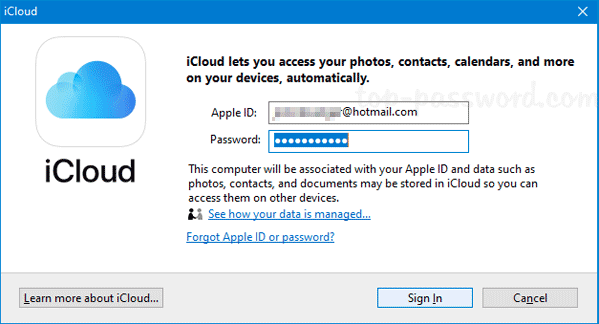
- Sign in with your Apple ID and password.
- If two-factor authentication pops up, approve it on your phone.
- Choose what you want to sync (tick the boxes for Photos, Mail, Contacts, Calendars, iCloud Drive, etc.).
- Click Apply — your data will start syncing!
After this, your files show up in File Explorer like this:
This is how iCloud Drive looks in your PC’s File Explorer:


And here’s an example of the login screen in the app:

Extra Tips
- If things don’t update right away, click Sync or restart your PC.
- Make sure you’re online for syncing to work.
Helpful Topics:
- Apple’s Next Smartphone May Have Ultra HD OLED Screens
- Apple Unveils Top 5 Best Selling Movies of All-Tim
- 10 Best Ways to Use and Personalize Your Apple Watch
- Unveiling the Future of Apple Products: iPhone
- Note Taking Apps: Top 8 Best Note Taking Apps for iPad, Android
Method 2: Using iCloud.com in Your Browser (Quick & No Install Needed)
This is perfect when you’re on someone else’s computer or just need a fast look.
Step-by-Step Guide
- Open your browser (Chrome, Edge, Firefox, etc.).
- Go to www.icloud.com.
- Enter your Apple ID and password.
- Approve the login if two-factor authentication is on.
- You’ll see a screen full of icons — click any one!
This is what the iCloud.com main dashboard looks like:
You can open Mail, Photos, Contacts, Calendar, iCloud Drive, Notes, and more — all right in your browser.
Extra Tips
- Always log out when you’re done, especially on shared computers.
- For regular use and offline files, the iCloud app is better.
Quick Security Tips
- Always use the official app or website — never trust random third-party programs.
- Turn on two-factor authentication (it’s like an extra lock).
- Use a strong, unique password for your Apple ID.
- Keep your PC updated and use good antivirus software.
- Avoid public Wi-Fi for important stuff — or use a VPN if you must.
- Watch out for fake emails asking for your Apple ID — never click suspicious links!
Troubleshoot iCloud Sync Issues on Your Windows PC
Don’t worry! iCloud sync problems on a Windows PC are very common, but most of them are easy to fix. Whether your photos, files in iCloud Drive, contacts, or calendars are stuck, slow, or not updating, follow these simple steps in order. Try one at a time and check if the problem goes away.
Quick First Checks (Do These First!)
- Make sure you’re online
Check your internet is strong and stable. Weak Wi-Fi is the #1 reason sync gets stuck or slow.
→ Restart your router or switch to a wired connection if possible. - Update everything
- Open the Microsoft Store → Click “Library” → Update iCloud if available (latest version as of now is around 15.x).
- Go to Windows Settings → Update & Security → Check for Windows updates.
Old software causes most sync errors.
- Check iCloud status
Go to Apple’s System Status page (search “Apple System Status” in your browser).
Look for green dots next to iCloud Drive, Photos, Contacts, etc. If any show yellow or red, wait — Apple is fixing it. - Restart your PC
A simple restart fixes many stuck syncs. Close iCloud first, restart, then open it again.
Common Problems & Easy Fixes
| Problem | What It Looks Like | Simple Fix Steps |
|---|---|---|
| Sync is stuck (spinning arrows forever) | “Syncing” never finishes | 1. Open iCloud app → Sign out → Sign back in. 2. In iCloud app, uncheck the stuck item (like Photos or Drive) → Apply → Wait 10 seconds → Check it again → Apply. 3. Restart iCloud app or PC. |
| Photos not syncing (or very slow) | Photos folder empty or old pics missing | 1. In iCloud app → Click Options next to Photos → Turn off “iCloud Photos” → Apply. 2. Wait until photos disappear from PC → Turn it back on → Apply. 3. Leave PC on and connected overnight — big libraries take time! |
| iCloud Drive files not appearing | New files don’t show in File Explorer | 1. Check file names — remove special characters like &, #, /, :, *, ?, “, <, >, | (Windows hates them). 2. Shorten long folder names or paths (keep under 256 characters). 3. Uncheck iCloud Drive → Apply → Re-check → Apply. |
| Contacts or Calendars not in Outlook | Outlook shows old or no data | 1. Close Outlook. 2. In iCloud app → Uncheck Contacts & Calendars → Apply. 3. Wait 10 sec → Check them again → Apply. 4. Open Outlook → Refresh (F9 key). |
| Sync is super slow | Takes hours for small files | 1. Close other programs using internet. 2. Connect to power (not battery). 3. Make sure PC has free disk space (delete junk files). 4. Wait overnight — iCloud can be slow with thousands of files. |
| Nothing syncs at all | No updates anywhere | 1. Sign out of iCloud app completely → Close it. 2. Uninstall iCloud (Settings → Apps → iCloud → Uninstall). 3. Restart PC → Download fresh version from Microsoft Store or Apple site → Install → Sign in. |
Extra Helpful Tips
- Free up iCloud space — Go to iCloud.com on your browser → Check storage. Delete old backups or photos if it’s full.
- Turn off antivirus/firewall temporarily — Some security programs block iCloud. Turn them off for 5 minutes and test.
- Use iCloud.com as backup — If the app is still acting up, open www.icloud.com in your browser, sign in, and see/edit your files, photos, or calendar there. No app needed!
- Still stuck? Contact Apple Support — Call or chat with them. Tell them your Windows version and what exactly isn’t syncing.
Most people fix their sync problems with steps 1–3 above. Be patient — sometimes it takes a few minutes (or hours for big photo libraries) after you apply changes. Your data is safe in the cloud — nothing gets lost!
If you tell me exactly what is not syncing (photos? files? contacts?), I can give you even more specific steps. You’ve got this! 🚀
Final Thoughts & Best Tips
Accessing iCloud from your PC is simple once you set it up. Use the iCloud for Windows app for everyday syncing, or just go to iCloud.com when you need something fast. Research more below;
- Stolen iPhone, iPad, iPod, Apple Watch? What to do if You Lost your Device
- How Apple Pay Visa Contactless Hack Happen? Researchers find Answers
- Use Apple Pay for Contactless Payments on iPhone, iPad and Watch
- Mark Zuckerberg has this to say about Apple Vision Pro
Keep the app updated, use strong security, and check your storage space now and then. If you run out of space, you can buy more or clean up old files.
Follow these steps, and your photos, files, contacts, and everything else will stay in sync between your iPhone/iPad and your Windows PC — easy and safe.